How to Make an AI Rap Video: Photos to MP4 in 6 Steps
To make an AI rap video, add a photo per person (or a single photo with both of you), pick the stage and the sound, and press Create video. The default is 12 seconds in the Hotel Lobby booth, 480p on Wan 3.0, for 6 credits, and it ends as an MP4 with no watermark.
Updated
Inside RapVideo
6
Steps to an AI rap video
From photos to MP4.
- Photos → stage → sound
You film nothing and install nothing to make one: the performance and the lip-sync come from the photos. Below is every step it takes to make the video in the editor, then prices and fixes.
What you need before you start
- A clear photo of each person, or a photo of both people side by side.
- A phone or computer with a browser, and a Google account to sign in.
Follow along
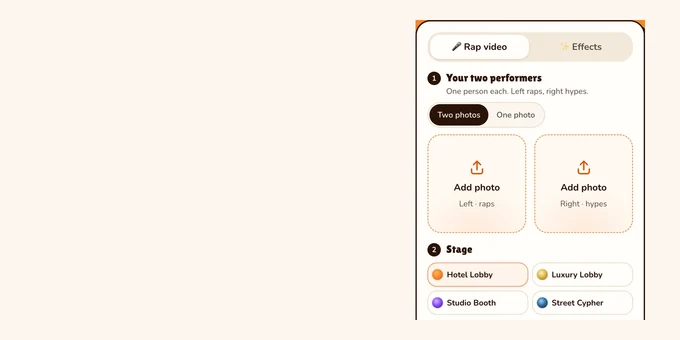
Follow each step in this editor
It opens on the default: the orange booth, 12 seconds, Wan 3.0 480p.
Your two performers
One person each. Left raps, right hypes.
Stage
Sound
Try it free first, one per account. The full 12-second video is 6 credits at 480p. View pricing
Step 1: Add a photo per person, or one of both
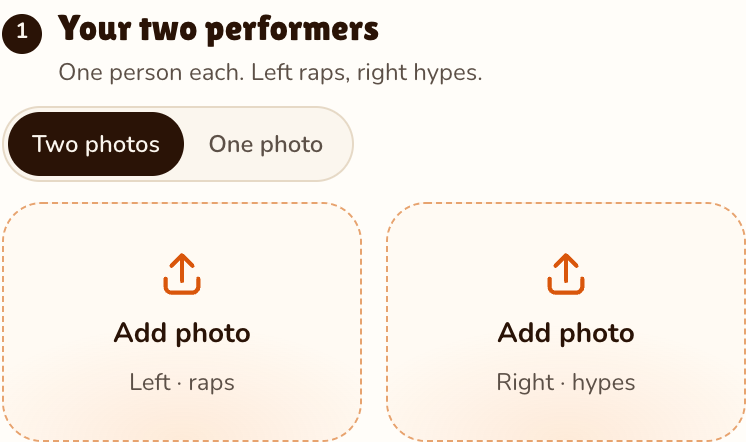
Tap Add photo in the Left performer slot and choose a picture from your phone or computer, then fill the Right performer slot. The left person raps; the right one hypes. Got one photo of the two of you? Switch to One photo. Then pick the stage.
- Use a front-facing shot with the whole face visible, good light and sharp focus: no sunglasses or mask.
- A single face per picture, everyday clothes, JPG, PNG, WebP or HEIC up to 25 MB and at least 300 px per side.
Step 2: Choose where the duo performs
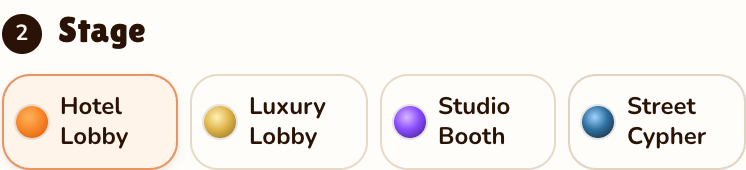
Pick the stage under Stage. The Hotel Lobby AI booth is the orange set from the trend, with the routine from our AI-made reference clip, and the stage that also takes the original song. The other three stages change only the background: your words are rapped there too, over the Hotel Lobby beat on Wan 3.0.
Step 3: Pick a sound, or have the verse written for you
Under Sound, Original song, the Hotel Lobby track, is the default. Tap Your words and type a topic such as "Lena and Tom, ten years of Sunday pancakes", or lyrics of your own, up to 1000 characters; before the render an AI turns it into rhyming lines on the beat (your words stay, only the rhymes and line lengths change), and the two of you rap them over the Hotel Lobby beat on Wan 3.0; on the other stages there are no buttons, only the box, and the lines go over the same beat. The box sits right under "Rap about…" and must be filled in before you create, and Both rap, on from the start, has the two trade bars. Your song, behind More options on the same line, lip-syncs 2 to 15 seconds of your own audio and turns the result into a music video for your track, as on the AI music video generator page.
Stuck for a line? Paste a line from these AI rap topic ideas, or see what an AI rap generator writes.
Step 4: Set length, quality and format in Video settings
Tap Change on the video row to pick the quality, 480p to 1080p, 5, 8, 10, 12 or 15 seconds and the format. Every rap stage runs on Wan 3.0, so there is no model to pick. Pick 9:16 for TikTok, Reels and Shorts. Every option shows its price.
Step 5: Press Create video and wait
The button shows the price, such as Create video · 6 credits. Signed out, you sign in with Google and your photos stay put. Rendering takes about 5 to 15 minutes on Wan 3.0, and you can close the tab.
Step 6: Download the MP4 and post it
Press Download MP4. Your AI rap video has no watermark and waits in My videos; uploaded files are deleted 7 days after the render. In 9:16 it fits TikTok, Reels and Shorts as it is.
Price per AI rap video, by model and length
| Video | Model | Credits |
|---|---|---|
| Booth, 12 s (default) | Wan 3.0, 480p | 6 |
| Booth, 5, 8, 10, 12 or 15 s | Wan 3.0, 480p | 3, 4, 5, 6 or 7 |
| Same lengths | Wan 3.0, 1080p | 8, 12, 16, 20 or 24 |
| Booth, 12 s, your words | Wan 3.0, 720p | 10 |
| Other stages, 12 s, your words | Wan 3.0, 720p | 10 |
Packs start at $9.99 and never expire, and a render that fails is refunded. Every pack and plan is on the pricing page.
When an upload or render goes wrong
- Refused upload: use a sharper copy under 25 MB, cropped closer to the face. Nothing is charged.
- Face looks wrong: use a front-facing shot with even light and a bigger face in the frame. With one photo of both people, both faces must be clear.
- Wrong person raps: the left slot always leads, so swap the two pictures.
- Render failed: your balance is refunded on its own.
FAQ
Does the finished MP4 carry a watermark?
No. Credits are paid when you create, so the download is clean.
Do the two photos have to be taken together?
No. Any two photos work, even years apart, and one photo of the two of you works too.
Can I turn my own song into a music video?
Yes. Open More options, pick Your song and upload 2 to 15 seconds; the lead lip-syncs it, at the same price as any other sound.
Read next
RapVideo is an independent tool, not affiliated with Quavo, Takeoff, Migos, Quality Control Music, Motown or COLORS.
Watch
AI rap video tutorials on YouTube and X
Videos and posts from creators and other tools, each credited and linked to the original. Nothing loads from YouTube until you press play.