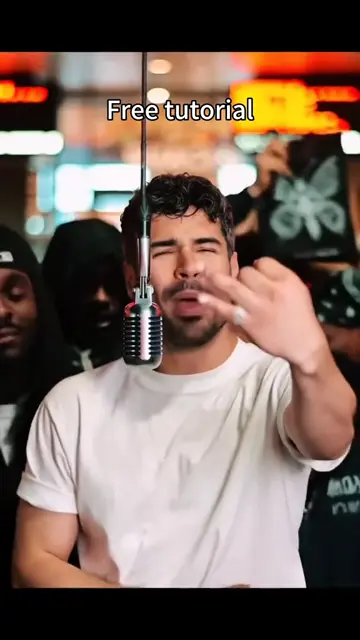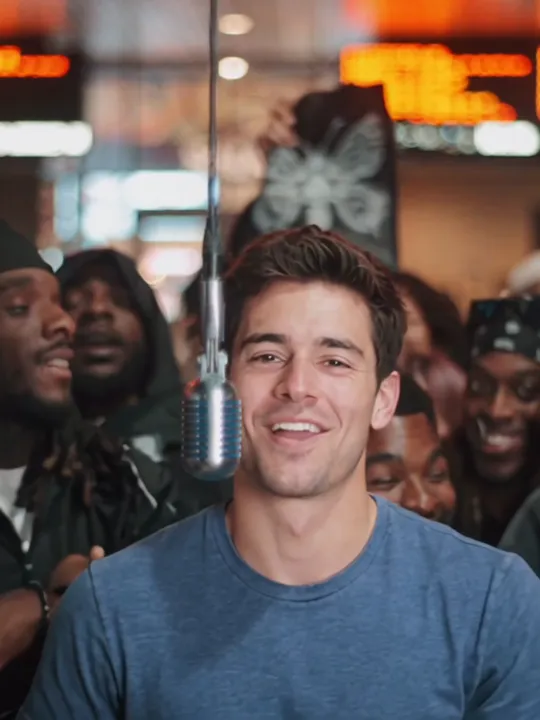
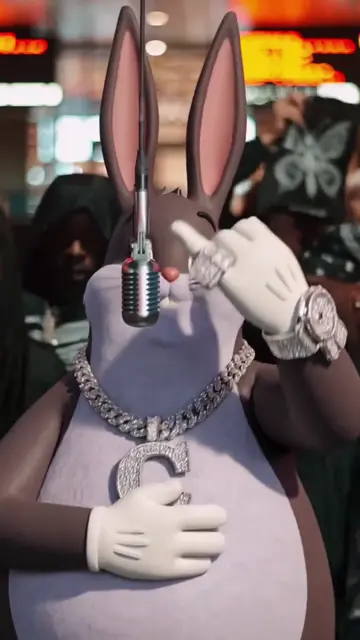
The lobby
A cinema lobby at night, orange showtime boards overhead and a red cinema sign in the last shot.
TikTok trend effect
One photo of one person, 15 s with the song, from $9.99 for your first video. Photos deleted after 7 days, never used to train AI. You rap BigXthaPlug’s Give It All at the hanging mic, 7 credits at 480p.
Your photo
One clear photo of you, facing the camera, waist-up if you have it, with only you in it. You rap at the hanging mic in BigXthaPlug’s From The Block lobby, in your own clothes; the song comes with it.
Effect
Video
This video: 7 credits. Ready in about 5 to 15 minutes; failed generations return your credits. View pricing
Answer first
Updated : new page.
BigXthaPlug Give It All AI is an AI video of you in BigXthaPlug’s From The Block performance of "GIVE IT ALL": you stand at a vintage silver mic hanging on a long cable in a packed cinema lobby at night, orange showtime boards overhead and a crowd behind you, and you laugh and rap to the song. Your face, hair, build and clothes come from your photo; the lobby, the crowd, the three camera angles and the sound come from the performance.
The performance went up on 3 November 2026 on @fromtheblock4so, the TikTok account of the From The Block series, and the post had 3.7 million plays on 16 November. The song is on BigXthaPlug’s album Better Over Time, out on 30 October 2026 (Complex). The first AI version we found, on 6 November, put a cartoon rabbit at the mic; from 15 November CapCut template posts spread "the Give It All to Me AI trend" from one photo.
RapVideo.ai has no connection to BigXthaPlug, his labels, From The Block, 4 Shooters Only, the creators below, TikTok or CapCut.
Not in this one: the performance has one rapper at the mic, so it takes one photo, and the crowd behind stays as it is. For the two of you at a hanging mic, the Hotel Lobby AI booth takes two photos, one of each of you.
Yes: the sound on your clip is the performance’s own first 15 seconds. What the series behind it is: what is From The Block performance.
On TikTok
Other people’s takes on the song and the trend, credited to their creators: tap a name to open the post.
From TikTok, credited to the creators. Tap a name to see the post.
Three steps
One clear photo, facing the camera, waist-up if you have it, with only you in it.
Effects → Your photo
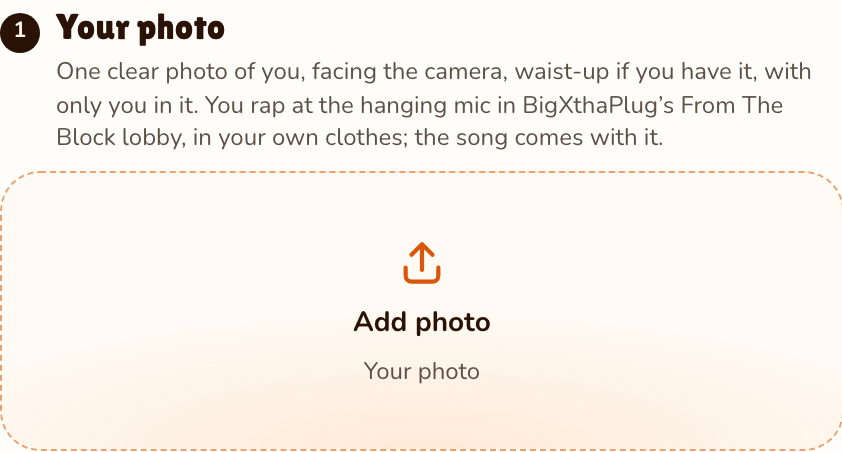
RapVideo editor · View full screenshot ↗
The editor opens on the Give It All effect, 15 seconds in a 3:4 portrait frame on Wan 3.0. Pick 480p, 720p or 1080p.
Effects → Give It All
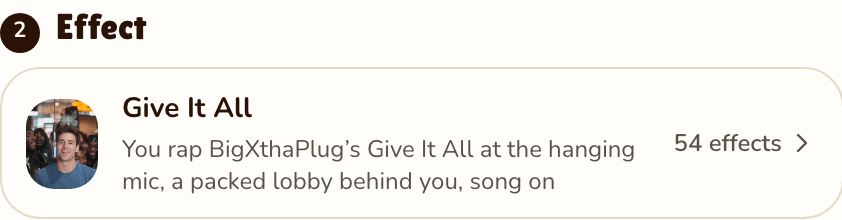
RapVideo editor · View full screenshot ↗
The video model estimates about 5 to 15 minutes. Save the MP4, sound included, and post it.
After rendering
Inside the clip
A cinema lobby at night, orange showtime boards overhead and a red cinema sign in the last shot.
A vintage silver mic on a long black cable, hanging at your mouth.
Three angles: close and straight on, from the side, then a front shot under a red cinema sign.
The performance’s own 15 seconds of Give It All, on the finished MP4.
We watched the first 15 seconds of the performance every quarter second. Your clip keeps its lobby, its crowd, its three camera angles and its timing; you take the rapper’s place in every shot:
| Seconds | What happens |
|---|---|
| 0 to 4.75 | Close and straight on: you stand just right of the hanging mic, bob to the beat and laugh, looking down and back up, a crowd behind you waving black flags. |
| 4.75 to 6.25 | You start singing into the mic and bring one hand up to your chin. |
| 6.25 to 8 | Cut to a side angle under orange neon: you turn to the mic on the left of the frame, both arms out toward it. |
| 8 to 11.8 | A clap, then you turn to the camera, eyes half shut, singing hard, hands working at your chest, fingers crossed at about 11 seconds. |
| 11.8 to 15 | Cut to the front shot under a red cinema sign: you stand in the middle, chest up, the mic in front of your face, and open both hands at your shoulders at the end. |
| This clip | |
|---|---|
| Photos | One, of one person |
| Price | 15 seconds for 7 credits at 480p, 12 at 720p or 24 at 1080p; 3:4 portrait only |
| Kept from your photo | Your face, hair, build and clothes |
| From the performance | The cinema lobby, the hanging mic, the crowd, the three angles and every move |
| Not from the performance | BigXthaPlug’s cap, chain, green denim jacket and build stay his |
| Sound | The performance’s first 15 seconds |
| Your photo | Deleted 7 days after the render, never used to train AI |
| Tested | Rendered by us once, on 16 November 2026, from a photo of an AI-made man (short dark hair, a blue T-shirt) at 480p, in about 6 minutes. He kept his own face, hair and T-shirt for all 15 seconds, with none of the performer’s cap, chain or green denim jacket. The two cuts came at the same moments as in the performance, and the moves with them: the hand to the chin, the arms out to the mic, the clap, the crossed fingers. In the last shot the camera sat further back than in the performance, showing him from the knees up instead of the chest up. We did not measure the lip-sync. The clip at the top is that render. |
| This effect | A CapCut template | Kling AI | |
|---|---|---|---|
| Where | In the browser, on a phone or computer | In the CapCut app, from a TikTok link | In the Kling AI app, from a pasted link |
| Photos | One | One | One |
| What you get | 15 seconds, 3:4, the performance’s sound | The template’s cut and sound | What the Kling template gives |
| Cost | 15 seconds for 7 credits at 480p, 12 at 720p or 24 at 1080p | Set by CapCut | Set by Kling |
Either way it starts with one photo, and the photo decides how good it looks: see the tips below. To film a real one with friends instead: how to do a hanging mic video.
On TikTok most posts make the Give It All to Me AI trend with a CapCut template:
Template links come and go; if one stops working, try another promo post. CapCut sets its own terms for templates and exports.
Some tutorials use a Kling AI template instead of CapCut:
From TikTok, credited to the creators. Hover over a clip (or tap it) to play; tap a name to see the post.
What From The Block is and who started the hanging mic: what is From The Block performance. More at the mic: Hotel Lobby AI, Stormzy Shut Up AI or all 54 AI video effects.
A TikTok trend from November 2026 that puts a new face at the hanging mic of BigXthaPlug’s From The Block performance of Give It All, with the cinema lobby crowd behind and the song on.
Add one clear photo of you on RapVideo.ai, keep the Give It All effect selected and press Make the effect. Download the MP4; the sound is already on it.
RapVideo.ai, on this page: one photo, a 15-second 3:4 MP4 with the performance’s sound, made in the browser, no app needed.
Yes. Many TikTok posts call it the Give It All to Me AI trend; it is the same BigXthaPlug performance at the hanging mic.
15 seconds for 7 credits at 480p, 12 at 720p or 24 at 1080p on Wan 3.0. Packs start at 10 credits for $9.99, and a failed render gives its credits back.
No. The only free part of RapVideo is one 2-second watermarked preview per Google account, of the default Hotel Lobby video, the Bulin 47 Freestyle or Tiny Desk; everything else is paid with credits.
The effect is set up for people. We have not tested pets, so a pet photo may not come out as a pet at the mic.
Step up to the mic
15 seconds at the hanging mic, sound on, from 7 credits.